
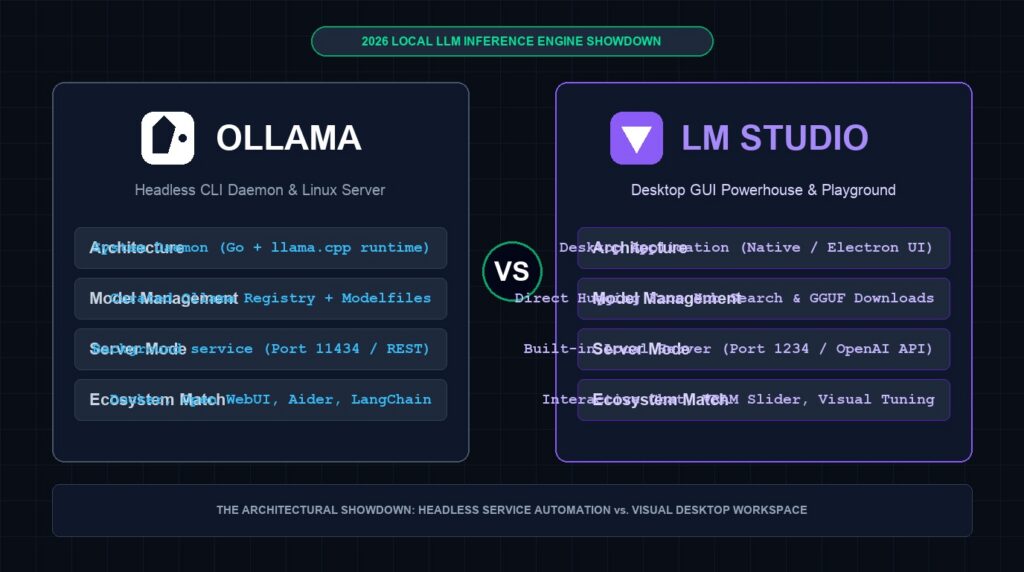
The explosive democratization of open-weights language models has made running multi-billion parameter AI models directly on local hardware—from Apple Silicon MacBooks to multi-GPU Linux workstations—a mainstream engineering discipline. Yet the immediate question facing every developer, researcher, and systems architect is identical: should you power your local stack with Ollama, the headless terminal-driven system daemon that treats models like Docker images; or should you standardize on LM Studio, the sleek desktop application that integrates a visual model playground, in-app Hugging Face downloader, and precision VRAM calculators? Having stress-tested both runtimes across thousands of inference hours and automated pipelines, here is the unfiltered reality of Ollama vs. LM Studio in 2026.
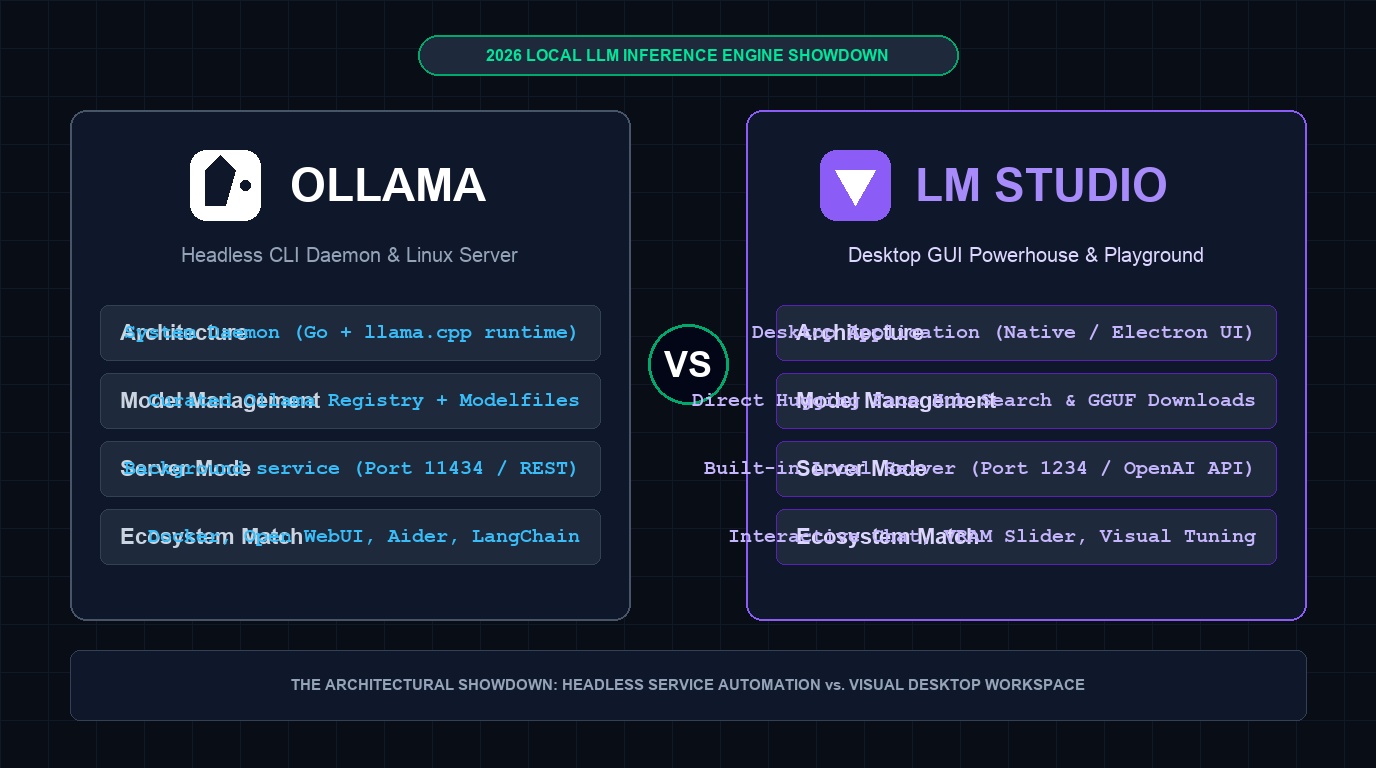
For AI engineers, terminal purists, and application builders, the decision between Ollama and LM Studio is not merely about whether you prefer a graphical user interface over a command line. It dictates how easily you can containerize local models in CI/CD pipelines, how finely you can tune GPU layer offloading and context length budgets, and how seamlessly your local inference engine integrates with agentic developer tools like Aider, Cursor, and Open WebUI.
The Fundamental Architectural Divide: System Service vs. Standalone Desktop App
To understand where each tool excels, you must examine how they interact with your operating system, GPU drivers, and background processes.
1. Ollama: The Unix Philosophy for AI Models
Created by Jeffrey Morgan and Michael Chi, Ollama was built to make running LLMs feel exactly like running Docker containers. Packaged as a compiled Go binary wrapping a high-performance C++ inference core (llama.cpp):
- Headless System Daemon: Once installed, Ollama runs invisibly in the background as a systemd service (Linux) or background launch daemon (macOS). It listens continuously on
http://localhost:11434without consuming active screen real estate. - The Modelfile & OCI Registry: Ollama pioneered the
Modelfile—a Dockerfile-like syntax where you specify base weights, system prompts, stop tokens, and temperature parameters (e.g.,FROM qwen2.5-coder:32b). Models can be built, tagged, and pulled from Ollama’s public library or custom private registries with a single command. - Zero-Friction CLI Execution: Typing
ollama run deepseek-r1:14binstantly checks for local weights, downloads missing layers with resumable chunks, allocates GPU VRAM, and drops you into an interactive terminal REPL in seconds.
2. LM Studio: The Visual Studio for Local AI
Developed by Element Labs, LM Studio was built to eliminate the mystery of quantization, context sizing, and hardware constraints through an exquisite, human-centered desktop application:
- In-App Hugging Face Hub: You do not need to hunt through GitHub repositories or manually copy Hugging Face URLs. LM Studio features an integrated search engine directly wired to Hugging Face. Typing a model name surfaces all community GGUF quants (Q4_K_M, Q5_K_S, Q8_0) alongside real-time indicators showing whether the file fits in your machine’s physical VRAM.
- Visual GPU Offloading Sliders: Rather than guessing terminal flags, LM Studio provides an interactive memory calculator. You drag a slider to decide exactly how many transformer layers to offload to your GPU (Metal or CUDA) and see your projected system RAM and VRAM footprint update in real time.
- Comprehensive Playground: LM Studio includes a rich multi-turn chat workspace where you can compare two models side-by-side, inspect raw token generation metrics (time-to-first-token and tokens-per-second), test structured JSON schemas, and tweak sampling parameters with intuitive sliders.
Hardware Allocation & VRAM Management Compared
How an engine allocates GPU memory and manages transformer layers determines whether your system runs smooth inference or crashes into painful Out-Of-Memory (OOM) kernel panics.
| Hardware Parameter | Ollama | LM Studio |
|---|---|---|
| GPU Offloading Control | Automatic heuristics (dynamically calculates max GPU layers; configurable via Modelfile or env vars) | Manual slider control (choose 0 to N layers; granular VRAM estimation preview) |
| Context Window Sizing | Default 2,048 tokens (often surprises developers; requires OLLAMA_NUM_PARALLEL or num_ctx adjustment) |
Visual slider (set 4k, 8k, 32k, or 128k context with immediate VRAM impact calculation) |
| Apple Silicon Support | First-class Metal acceleration; zero-overhead unified memory utilization | First-class Metal acceleration with Apple Silicon native binary |
| Headless Linux Server | Native systemd service, lightweight CLI, official Docker images | CLI exists (lms), but primary product is designed for desktop GUI sessions |
One historical frustration with Ollama is its conservative default context window of 2,048 tokens. If you send a large code file from Cursor or Aider without explicitly configuring num_ctx 32768 inside a Modelfile, Ollama silently truncates your context. In contrast, LM Studio makes context window budgeting completely transparent: you see exactly how allocating 32k context increases memory consumption before you send your first prompt. If you frequently encounter memory constraints, consult our guide on fixing Ollama OOM errors and our hardware sizing breakdown for GPUs under $1,000.
API Servers & Ecosystem Integration: Port 11434 vs. Port 1234
Both platforms can function as local HTTP servers mimicking the OpenAI REST API format, allowing third-party tools to interact with your local weights.
Ollama’s Background Daemon Ecosystem
Ollama is the undisputed standard in programmatic integrations:
- Always-On Architecture: Because Ollama runs as a background service, it is always available. You do not need to keep an application window open. When a request arrives on
http://localhost:11434/v1, Ollama automatically loads the requested model into VRAM, processes the request, and keeps it cached in memory for 5 minutes (configurable viaOLLAMA_KEEP_ALIVE) before cleanly unloading it. - Tooling Ubiquity: Every major open-source AI project—from Open WebUI (the self-hosted ChatGPT clone), LlamaIndex, LangChain, to coding companions like Continue.dev and Aider—features native first-class drop-downs for Ollama.
- Multi-Model Concurrency: In modern versions, Ollama can load multiple models into memory concurrently (if VRAM permits) and process parallel requests across different threads.
LM Studio’s Local Server Engine
LM Studio features a dedicated “Local Server” tab that turns your desktop app into an OpenAI-compatible endpoint listening on http://localhost:1234/v1:
- Live Request Inspector: As third-party clients hit LM Studio’s API, the GUI displays incoming raw JSON payloads, header configurations, and real-time streaming token counters in a clean visual log.
- JIT Model Loading: LM Studio supports Just-In-Time (JIT) model loading via API calls, automatically swapping out models when an external script requests a different model ID.
- Desktop Dependency: If you close the LM Studio desktop window or log out of your desktop session, your API server shuts down. It is not designed to power production background microservices on headless rack servers. For high-throughput multi-user production workloads, see our dedicated comparison of Ollama vs. vLLM.
Developer Workflows: CLI Scripting vs. Visual Experimentation
The daily developer experience reveals the true personality of each tool.
Developer Workflow Ergonomics:
- The Ollama Power-User Workflow: An engineer spins up an Ubuntu VM on a local Proxmox cluster, runs
curl -fsSL https://ollama.com/install.sh | sh, pulls Qwen 2.5 Coder, and binds it to their internal development subnet. Every engineer on the LAN can point their IDE tohttp://ai-server.lan:11434/v1for zero-cost, private tab completions. Everything is version-controlled in Git via Modelfiles. - The LM Studio Researcher Workflow: An AI product manager wants to evaluate five different quantized versions of DeepSeek-R1 against a tricky system prompt with strict JSON output formatting. With LM Studio, they download the GGUF models directly within the app, configure temperature and top-p sampling with visual dials, run side-by-side prompt comparisons, and export conversation transcripts with a single click.
Comprehensive Head-to-Head Comparison Table
| Feature / Capability | Ollama | LM Studio |
|---|---|---|
| Primary Interface | Terminal CLI & Background REST Daemon | Rich Desktop GUI (Mac, Windows, Linux) + CLI |
| License & Source | 100% Open-Source (MIT License) | Free for personal use (Proprietary core; commercial license for business) |
| Model Discovery & Download | Curated Ollama library (e.g. ollama run llama3.3) + manual GGUF import |
Integrated Hugging Face Hub search with hardware compatibility ratings |
| Headless Server Deployment | Native Linux systemd & Docker container support | Limited (Requires desktop environment or experimental CLI) |
| VRAM Calculation Preview | Terminal log output upon model initialization | Real-time interactive visual memory breakdown |
| Third-Party App Support | Universal ecosystem standard (Open WebUI, Aider, LangChain) | Excellent (via standard OpenAI endpoint emulation) |
| Structured Output (JSON / Schema) | Supported via API format parameter | Dedicated GUI tester with JSON schema validation |
When to Choose Ollama vs. LM Studio
Choose Ollama If:
- You are building automated pipelines or background tools: You want an inference engine that boots automatically on system startup, runs invisibly in the background, and seamlessly integrates with developer tools like Aider, Cursor, and Open WebUI.
- You operate on headless Linux servers or Docker containers: You run home-lab servers, AWS EC2 instances, or Proxmox nodes without a graphical desktop interface.
- You demand 100% open-source purity: You prefer MIT-licensed open-source software over proprietary freeware.
- You want infrastructure-as-code: You appreciate packaging model configurations, custom system prompts, and quantization choices into version-controlled Modelfiles.
Choose LM Studio If:
- You want the simplest, most intuitive desktop experience: You do not want to memorize terminal commands or configure environment variables just to test a new LLM on your Mac or PC.
- You constantly explore bleeding-edge models on Hugging Face: You want to search, inspect quantization ratings, download, and test community GGUF uploads without leaving the app.
- You need granular control over VRAM allocation: You want visual confirmation of how many GPU layers to offload and exactly how expanding your context window impacts memory usage.
- You conduct prompt engineering and model evaluation: You want side-by-side model chat comparisons, real-time token speed metrics, and intuitive sampling dials.
The Symbiotic Hybrid Stack: How Power Users Leverage Both
Experienced AI practitioners do not treat Ollama and LM Studio as mutually exclusive rivals. In 2026, the gold-standard local setup often combines both tools:
- LM Studio as the Research Laboratory: Use LM Studio on your primary workstation to discover, download, and benchmark new community models from Hugging Face, dial in the perfect context length, and verify that the model answers domain-specific prompts accurately.
- Ollama as the Production Workhorse: Once you have validated the ideal GGUF model and prompt template, you import it into Ollama or run the official Ollama registry version. Ollama runs as a background daemon, serving your terminal coding agents, local Slack bots, and internal RAG pipelines with maximum uptime and zero UI overhead.
Frequently Asked Questions
Is Ollama faster than LM Studio?
Both Ollama and LM Studio use llama.cpp as their underlying C++ inference engine. When configured with identical quantization levels (e.g., Q4_K_M), identical GPU layer offloading, and equal context lengths, their raw generation speeds (tokens per second) are virtually indistinguishable. Any minor variance typically stems from different default context sizes or prompt template formatting.
Can I share downloaded models between Ollama and LM Studio?
Yes. LM Studio stores standard .gguf files in its designated download directory (e.g., ~/.cache/lm-studio/models). You can easily point an Ollama Modelfile directly to an existing GGUF file downloaded by LM Studio using the FROM /path/to/model.gguf syntax, preventing duplicate multi-gigabyte downloads.
Does LM Studio require an internet connection?
No. While an internet connection is required to search and download models from Hugging Face initially, once a model is saved locally, LM Studio runs 100% offline with zero telemetry or data transmission to external servers.
Can Ollama run models that are not in the official Ollama library?
Yes. You can import any third-party GGUF model from Hugging Face into Ollama by creating a simple one-line Modelfile pointing to the GGUF file on disk and executing ollama create my-custom-model -f Modelfile.